Operator terminal: production tracking on a shop tablet
Operators start, stop and finish jobs on a tablet; time, downtime and production records write themselves. Setup, PINs, QR codes and common questions.
- Published:
- Author:
- Spindeo team
- 8 min read
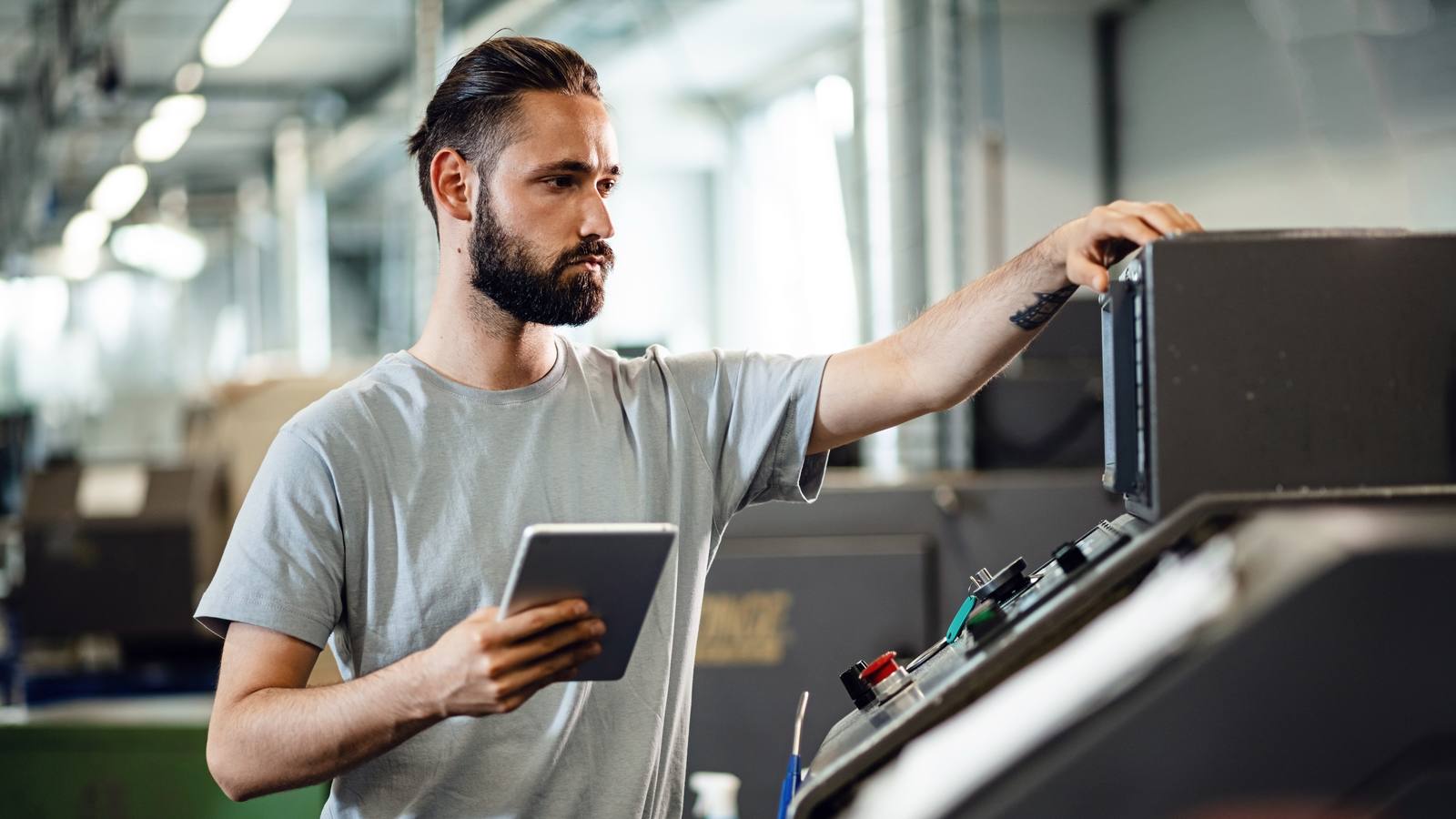
The quality of production data depends on how much time operators have for record keeping. A time written from memory at the end of a shift is an estimate, and someone typing paper forms into a computer in the office is a second job. The fix is to move the record to where the work happens, right next to the machine.
That is what Spindeo's operator terminal is for. You put a tablet next to the machine; the operator starts the job there, stops it for a break and enters the quantity when it is done. The system keeps the time, and the production entry, downtime and the machine's running hours are created for you. This article covers how to set it up, how it works day to day and what the operator can and cannot see.
Why a tablet, and why at the machine?
Shops that run on paper see the same three problems:
- Time becomes a guess. Did the job take 3 hours 40 minutes or 4 hours? Nobody remembers exactly at the end of a shift.
- Short stops disappear. The 15 minutes waiting for material and the 10 minutes on a tool change never reach the paper, yet these are the records that explain the loss in an OEE calculation.
- Data arrives late. Today's scrap is noticed tomorrow, or at month end.
A tablet solves all three because the record is created at the same moment as the work. Operators do not write a separate report; a few taps are added to what they already do.
Setup in four steps
No special hardware or app is needed. The screen opens in a browser.
1. Add your operators. On the settings page you give each operator a name and a 4-digit PIN. An operator is not a user account: no email, and they do not count towards your user seats. The same PIN cannot be given to two operators.
2. Pair the tablet with a machine. An administrator signs in on the tablet once, picks the machine and pairs the device. From then on no session stays open on the tablet; the device only shows that machine's operator screen.
3. Review the stop reasons. Adjust reasons such as breakdown, tool change and waiting for material to fit your shop. A short, clear list helps operators pick the right one.
4. Print the job sheet. The sheet with the QR code travels with the job. The QR code is optional; the job can also be picked from the list.
A tablet or phone with a camera is enough for scanning. If the camera does not open, the work order is picked from the list and the flow carries on.
What does the operator's day look like?
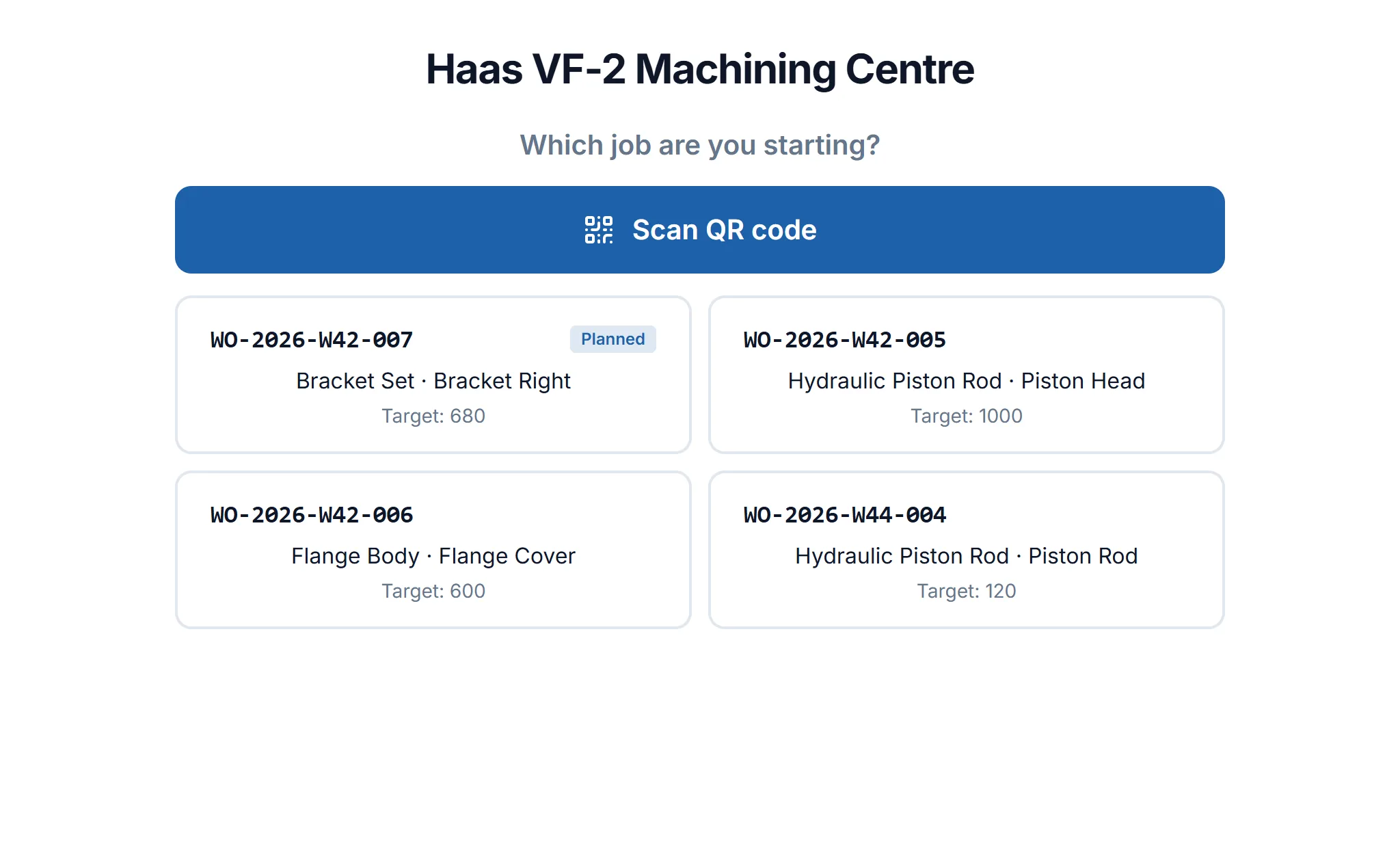
The tablet on an idle machine lists the work orders that can run on it. The operator picks one or scans the QR code on the sheet. If there are several operations they choose one, enter their PIN and the job starts.
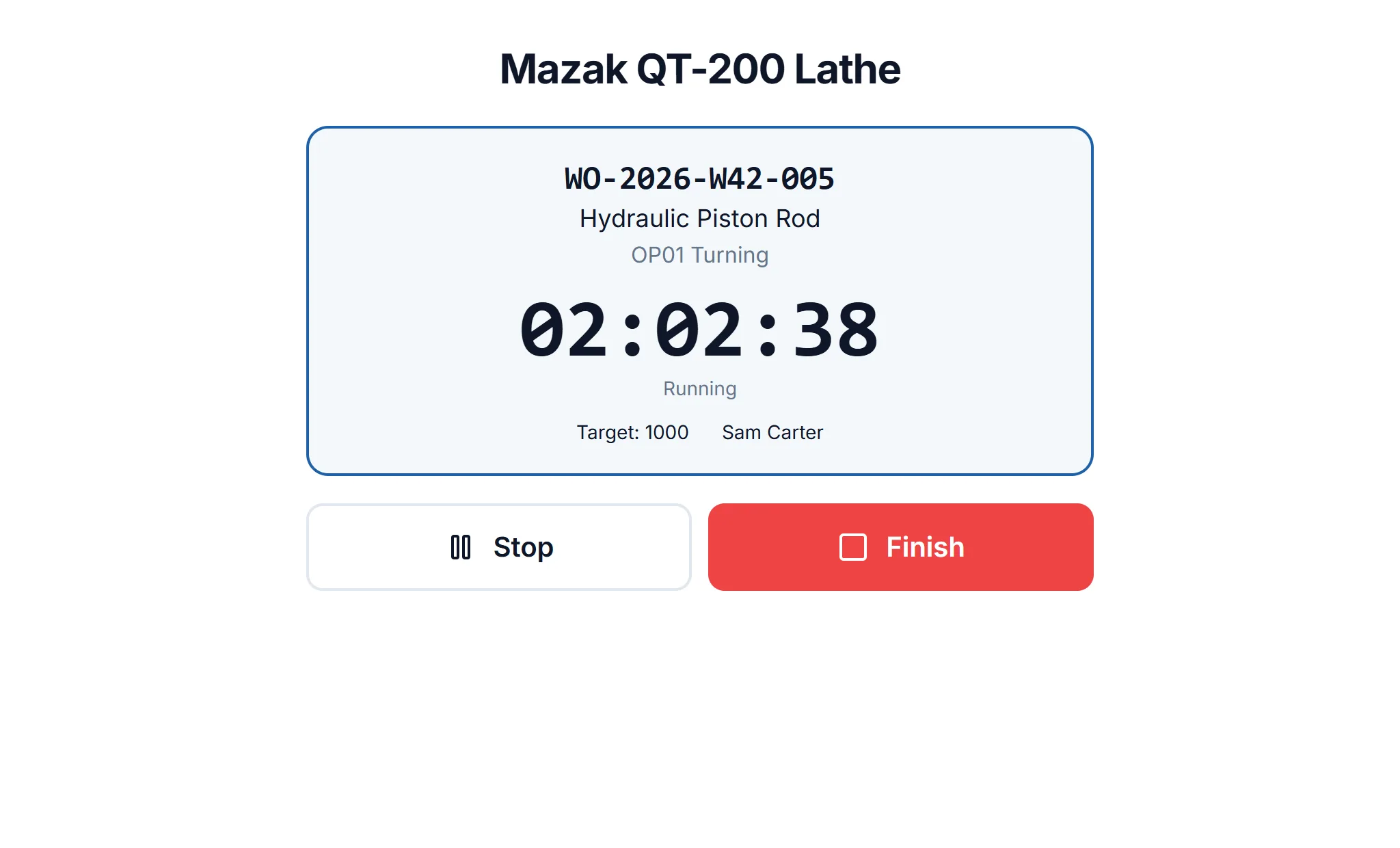
A running job shows the work order, operation, operator name, target quantity and elapsed time. The buttons are large and work with gloves on.
For a break, the operator taps Stop and picks a reason, then taps Resume when the job continues. The stop time is saved with its reason.
When the job is done they tap Finish and enter the good, scrap and rework quantities. That is all. The production entry goes to the work order, each stop goes to downtime with its reason, and the measured time goes to the machine's running hours.
What does the manager see?
The home page shows running jobs, stopped jobs and jobs waiting for a quantity. You can see what is happening on each machine without walking to the floor. The production page can be filtered to show which operation of which project has parts waiting and where scrap came from.
Time from the operator terminal is measured time, and that difference matters. The job costing calculation on the Pro plan uses measured time; for production entered by hand it estimates from the standard time and marks the row as an estimate. On the Pro plan, jobs the planning screen has placed on a machine also move to the top of the tablet's list marked "Planned", though the operator can still choose another job.
Can you trust the record?
The terminal was designed around things that happen on a real shop floor.
The server keeps the time. The counter uses the server's clock, not the tablet's. If the tablet sleeps or restarts, the time stays right.
Forgotten jobs close themselves. A job left unfinished is cut at its planned hours once the machine's daily hours have passed by two more hours. The cut time does not count as measured, is shown separately, and an administrator enters the quantity.
Only one job can be open on a machine. The same time cannot be written to two jobs.
Wrong PINs lock the tablet. After five wrong attempts the tablet locks for a while; the lock grows with each repeat, up to an hour.
A lost tablet can be cut off. Remove it from the paired devices list in settings and its device key stops working at once.
No prices or customers on the tablet
Not everyone on the floor needs to see everything. The tablet only sees the machine it is paired with and the jobs that can start there: work order number, project, operation and target quantity. Prices, customers and the rest of the app do not open on it. The QR code holds only the work order's ID, so even a lost sheet carries no price or customer information.
This limit also makes the operator's job easier. No menus, reports or settings, only their own work.
How do operators get used to it?
The biggest risk with a new screen is habit, not software. A few simple rules reduce resistance:
- Do not switch the whole shop on the same day. Start on one machine with a volunteer for a week.
- Say why the screen is there. The aim is to see why machines wait, not to watch people.
- Write the list of stop reasons together with your operators.
- In the first weeks, do not blame anyone for a missing entry; ask why it was missed.
The rest of the transition plan is in our article on work order tracking.
Where does the tablet go?
Small details decide whether the screen gets used. Mount the tablet near eye level where the operator can reach it without walking away from the machine. Keep it out of the coolant and chip spray, and use a sturdy protective case. Leave the charging cable connected; a flat tablet will not be used the next day. Check early that the shop's wireless network reaches the machine, because recording needs a connection.
The tablet does not have to be new. An old tablet or phone already in the shop may be enough for a trial. Try one machine first, then decide on the others once screen size and placement feel right.
At the end of the first week look at three questions: how many jobs were started on the tablet, were stop reasons chosen, and do the quantities match production? The answers show where support is needed.
Frequently asked questions
Does the operator terminal cost extra?
No, it is in the free Production Tracking plan. Operators do not count towards user seats. Each tablet pairs with one machine; the free plan includes 1 machine and extra machines are paid for separately.
Which tablet do I need?
No app is installed; the screen opens in a browser. A tablet or phone with a camera is enough for scanning QR codes. If the camera does not open, the work order is picked from the list.
What happens if the internet goes down?
A no connection warning appears, and taps made in the meantime are not saved. A running job keeps counting on the server, and the screen refreshes by itself when the connection returns.
Which jobs does an operator see?
Work orders that are approved or in production, done in your own shop, with an Active operation plan. Only one job can be open on a machine at a time.
Spindeo's operator terminal comes with the free plan; you do not need a card to pair a machine with a tablet and start the first job.