Write the quote, revise it, turn it into a project when the order comes
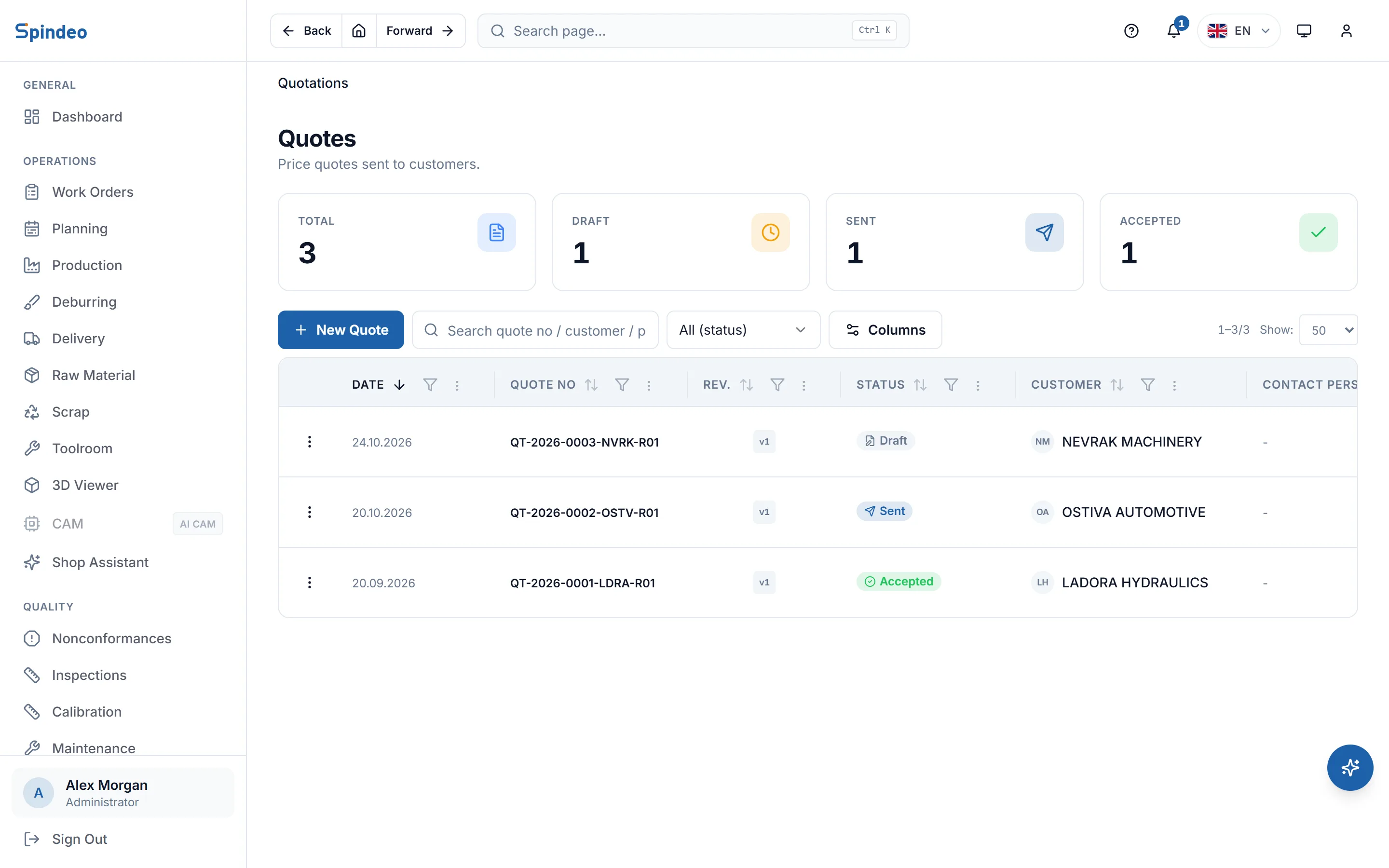
Customer, line items, quantity and unit price. When you save the quote it gets its number automatically, and you download it as a PDF with your logo and stamp. When the customer orders, the accepted lines become projects, and the form tells you what you quoted for the same part before.
How it works
- 1
Write the quote
Pick the customer; the address and contact person come from the company record. For each line you enter the part number, description, quantity, unit and unit price, and the total is calculated for you. Payment and delivery terms and the validity date sit on their own tab.
- 2
Review it and send the PDF
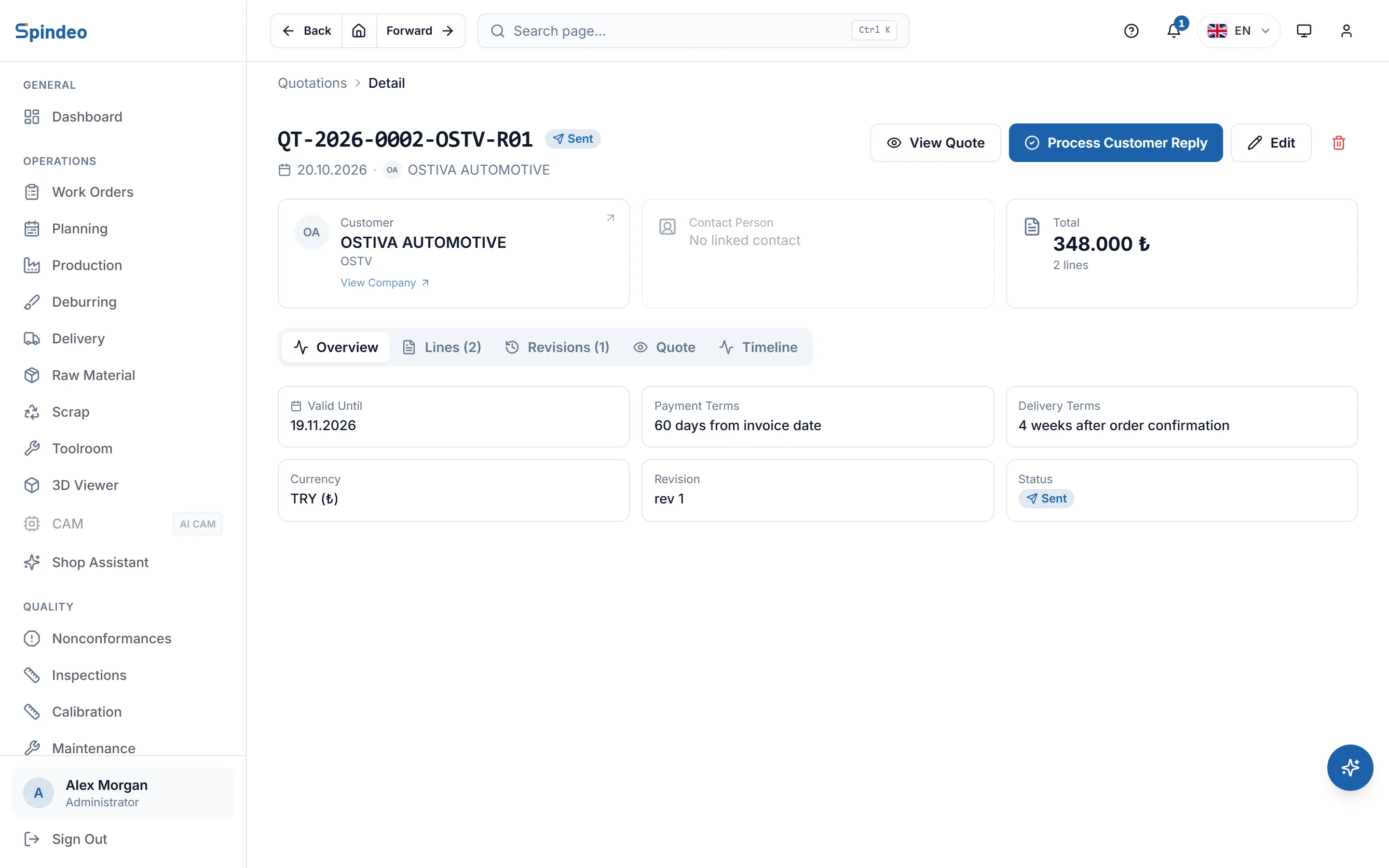
Someone with the right permission marks the quote as Reviewed. You download the PDF, send it to the customer from your own email, and mark the quote as Sent.
- 3
Revise it if needed
If the customer asks for a different price or quantity, Revise opens a new revision filled in from the previous one. Old revisions are never deleted; they stay in order on the quote's Revisions tab.
- 4
Process the order
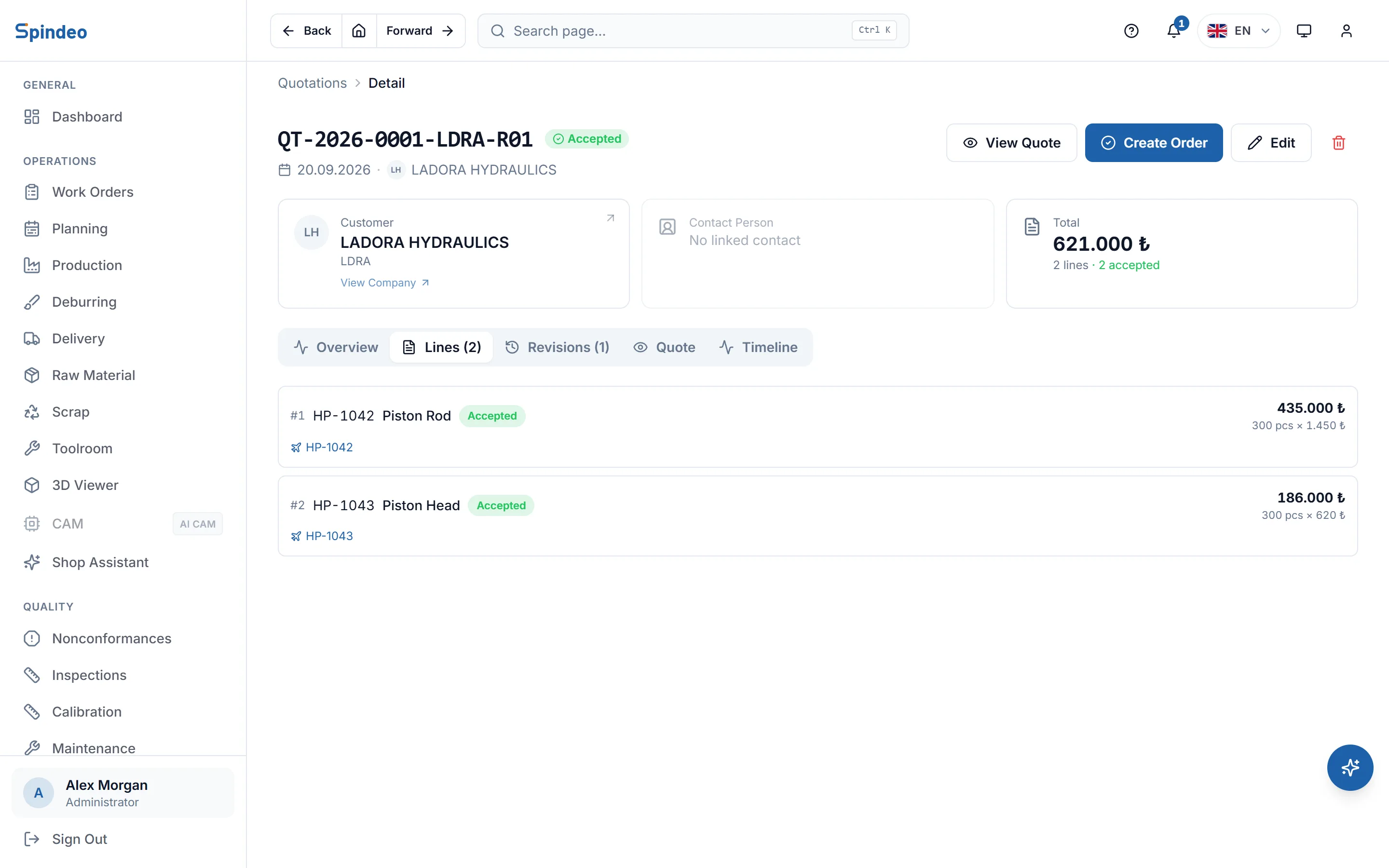
When the customer replies, you mark which lines were ordered and in what quantity. A project linked to the quote opens for each accepted line, and you open the work order from that project. Rejected lines stay marked as Rejected.
What's included
Automatic quote numbers
The number is built from the year, a sequence, the customer's four-character quote code and the revision (for example QT-2026-0002-ABCD-R01). You can read from the number which revision went to which customer.
Earlier quote warning
If the part number on a line has been quoted before, the form warns you and lists the latest quotes. You will not quote a different price for the same part without noticing.
Partial acceptance
If the customer orders only some of the lines, or a smaller quantity, the quote becomes Partially Accepted. The accepted quantity of each line is recorded separately.
Lira, dollars or euros
You prepare the quote in one of three currencies. When you choose dollars or euros, a ready-made note about the invoicing exchange rate is added to the general notes, and you can edit it.
Attachments
Drawings, the customer's request for quote or your own price calculation can be attached to the quote. They are kept on record and do not go into the PDF.
A timeline from quote to invoice
The quote's page shows the project, work order, production, delivery and invoice that came from it, in order. You follow what became of a quote on one screen.
Frequently asked questions
Try it in your own workshop
After you sign up you can open the sample workshop: browse the screens on this page in your own browser, then switch to your own data.
Works together with
- Work OrdersProject, process plan, quantity and due date; a QR job sheet.
- Invoices and LedgersOutgoing and incoming invoices, payments, due dates and balances.
- Reports and OEEOEE per machine, scrap trend and job profitability.
- AI AssistantAsk about your shop data; the assistant answers from your records.