The operator starts the job on the tablet, the system keeps the time
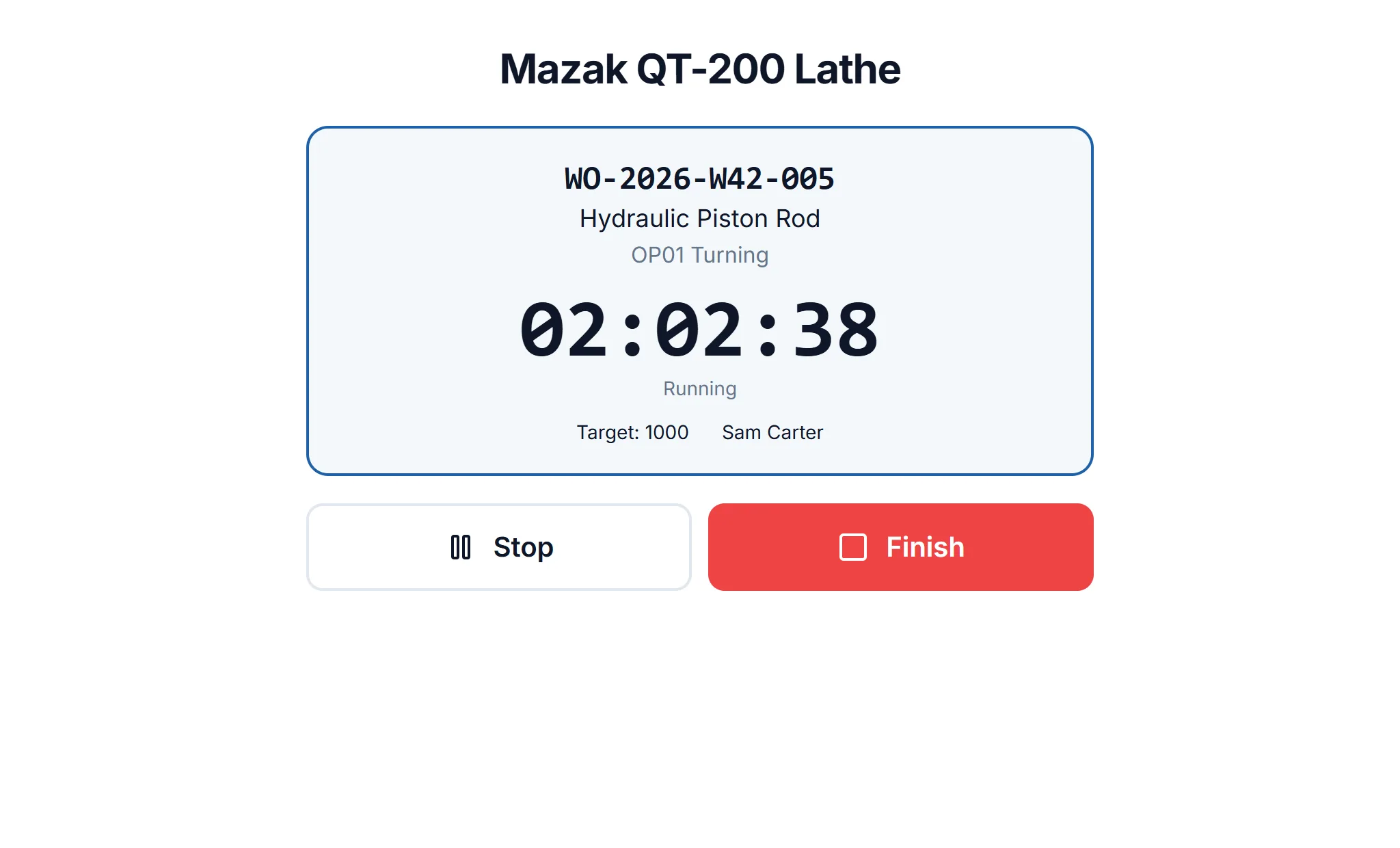
You put a tablet next to the machine. The operator scans the QR code on the job sheet, enters their PIN and taps Start. When the job is done they enter how many good and scrapped parts came off; the production entry, downtime and the machine's running hours are created for you.
How it works
- 1
Add your operators
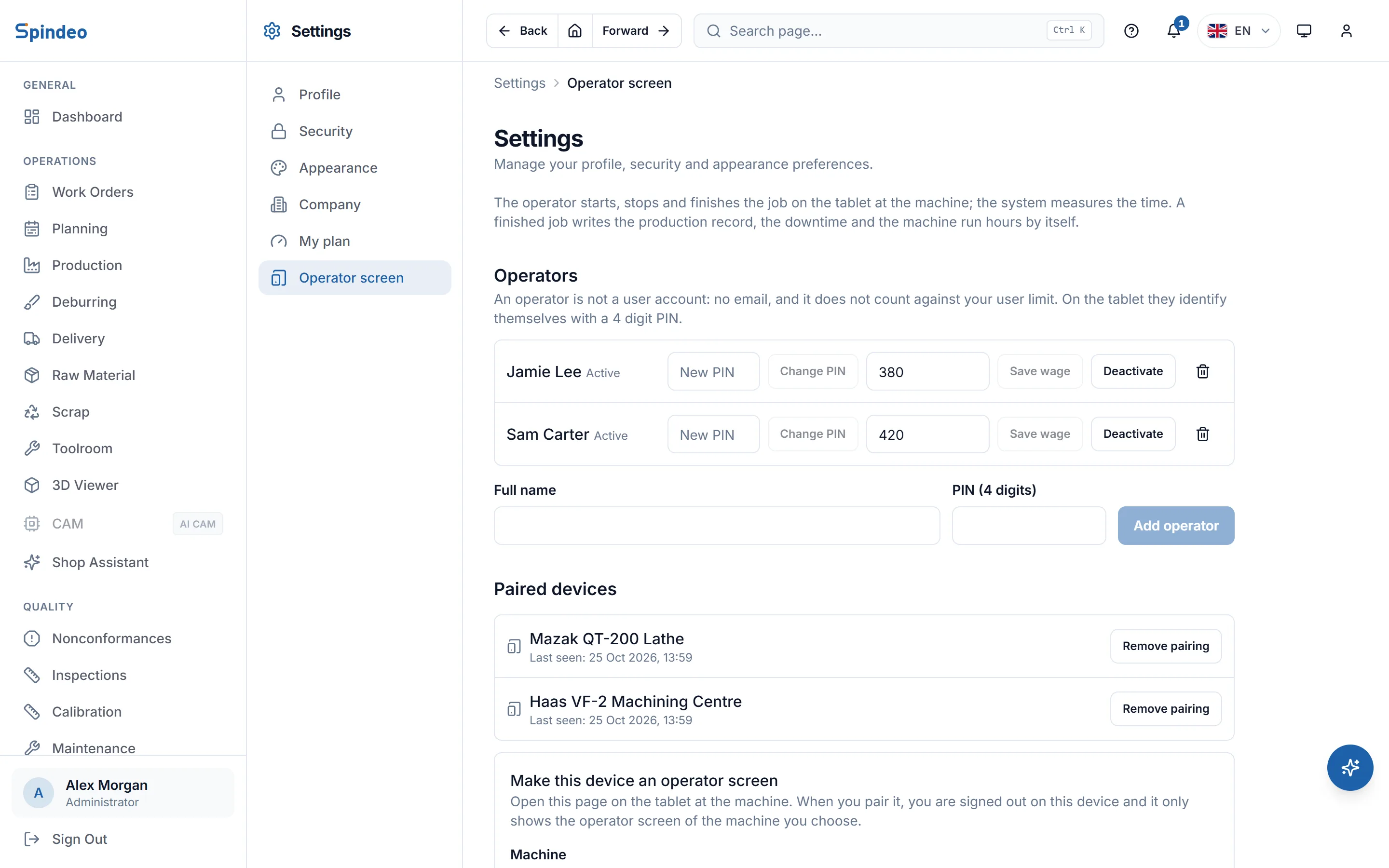
On the settings page you give each operator a name and a 4-digit PIN. An operator is not a user account: no email, and they do not count towards your user seats.
- 2
Pair the tablet with a machine
An administrator signs in on the tablet once, picks the machine and pairs the device. From then on no session stays open on the tablet; the device only shows that machine's operator screen.
- 3
The operator starts the job
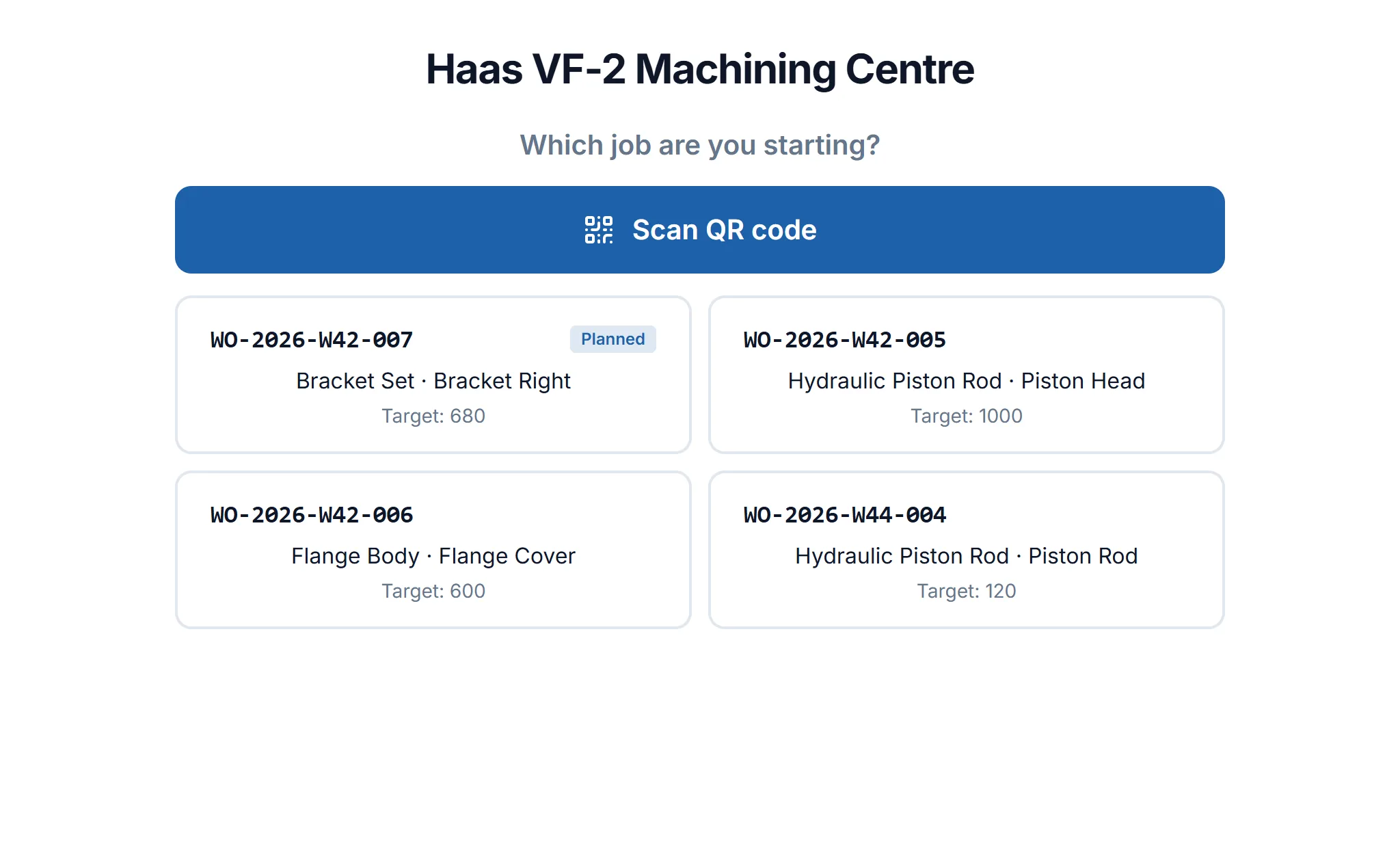
The work order is picked from the list or its QR code is scanned with the camera. If there are several operations they pick one, enter the PIN and the job starts. For a break they tap Stop and pick a reason, then Resume.
- 4
Finish, and the records write themselves
At Finish they enter the good, scrap and rework quantities. The production entry goes to the work order, each stop goes to downtime with its reason, and the measured time goes to the machine's running hours.
What's included
The server keeps the time
The timer follows the server's clock, not the tablet's. Even if the tablet sleeps or restarts, the time stays right.
Forgotten jobs close themselves
A job left unfinished is cut at the planned hours once the machine's daily hours plus two more have passed. The "On the shop floor now" section on the home page shows running, stopped and waiting-for-count jobs; the administrator enters the count.
Lock on wrong PINs
After five wrong PINs the tablet locks for a while; the lock grows each time, up to an hour. The same PIN cannot be given to two operators.
No prices or customers on the tablet
The tablet only sees its own machine and the jobs that can be started: work order number, project, operation and target quantity. Prices, customers and the rest of the app never open on it. The QR code holds nothing but the work order's ID.
Your own stop reasons
When the operator taps Stop, the reasons defined for your shop are listed: breakdown, tool change, waiting for material, or any you add. The stop time is saved with its reason.
Planned jobs come first
On the Pro plan, jobs the planning screen has placed on this machine move to the top of the list marked "Planned", with the planned operation selected. The operator can still pick another job.
Frequently asked questions
Try it in your own workshop
The operator terminal is off in the sample workshop; it works once a tablet is paired with one of your real machines. Sign up, pair a machine with a tablet and start the first job.
Works together with
- Work OrdersProject, process plan, quantity and due date; a QR job sheet.
- Production TrackingMachine, operation, good and scrap parts; downtime with its reason.
- Machine TrackingEach machine's output, run hours, utilisation and maintenance.
- Production SchedulingJobs are placed on machines and days; due date warnings come early.