The drawing and the 3D model, right next to the part
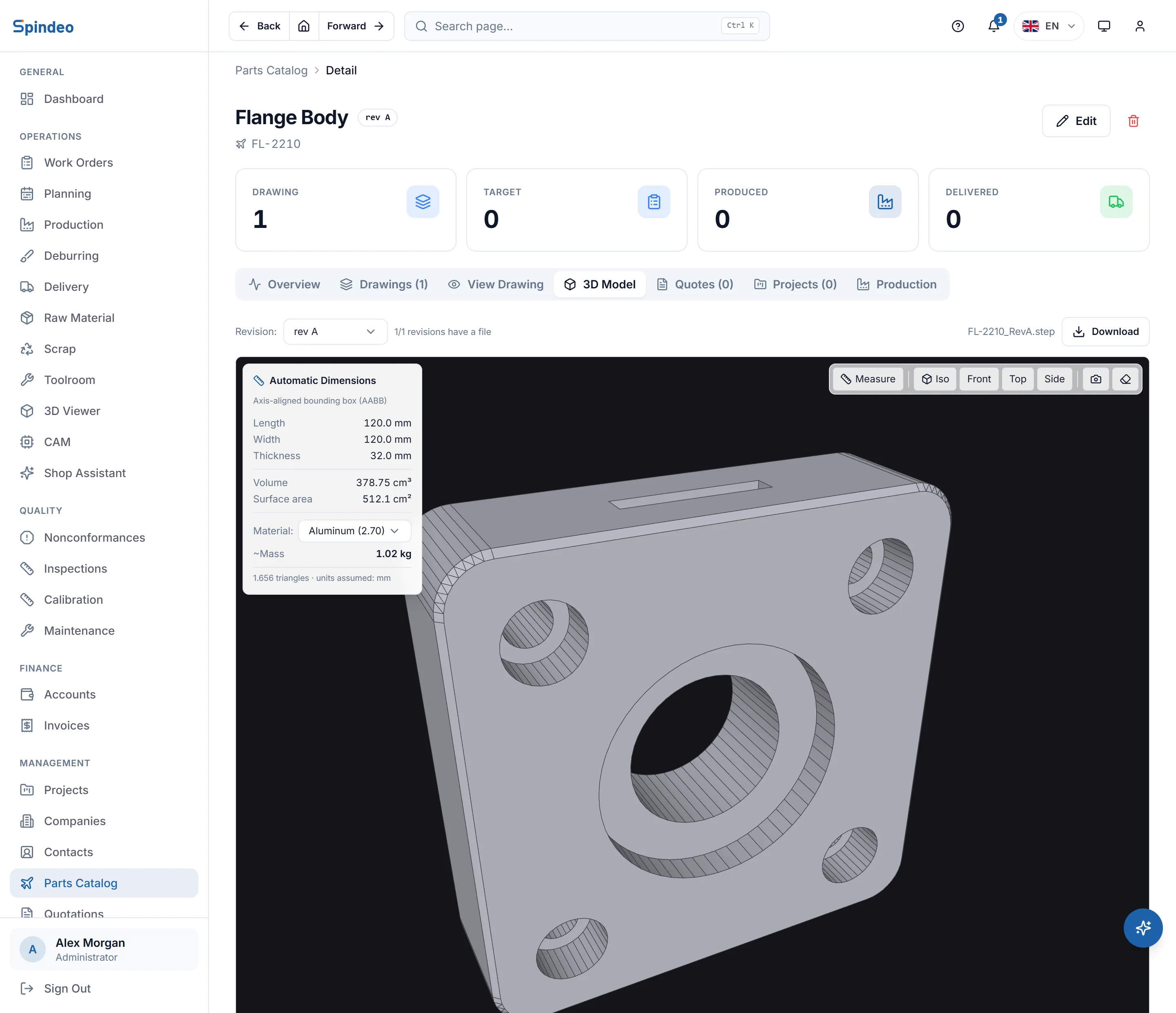
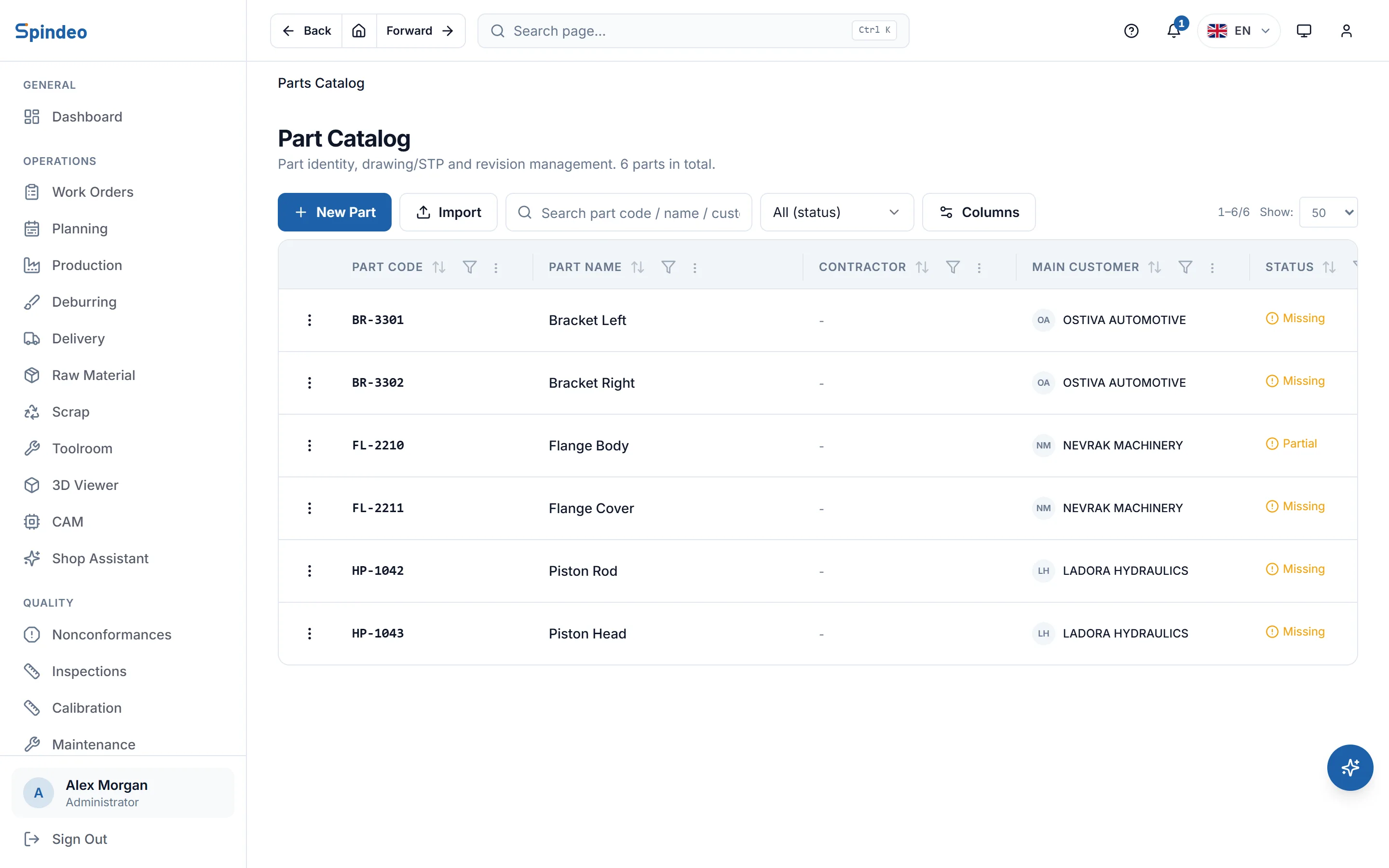
Each part's drawing and 3D model sit in the part catalogue with their revision. You open the PDF drawing and the STEP model in the browser, measure between two points, and see the part's size and weight. When quoting or opening a work order, you pick the part from the list.
How it works
- 1
Define the part
Part code, name, customer and specification. You set the part up once and never retype it on a quote or work order.
- 2
Attach files to the revision
Each revision takes a drawing (PDF, DWG, DXF) and a 3D model (STEP, IGES), with the date it was received. When a new revision arrives the old one is not deleted; it stays in the history.
- 3
Open and measure in the browser
The PDF drawing opens inside the page. You rotate the 3D model, look from the front, top, side and isometric views, and click two points to get the distance in millimetres.
What's included
Revision history
Which revision arrived when, and which files belong to it, are kept in order. When viewing, you pick the revision you want.
Automatic dimensions
Length, width and thickness, volume and surface area are taken from the 3D model. Choose the material and the part's weight is calculated.
Many 3D file types
The viewer opens STEP, IGES, BREP, STL, OBJ, 3MF, PLY, GLTF, GLB, FBX and 3DS files. DWG and DXF are not previewed in the browser; you download them and open them in your own software.
A quick look without saving
To look at a customer's file before quoting, you load it into the viewer. The file is not saved and is gone when you close the page.
Every model in one place
The viewer lists the 3D files attached to part revisions and process plans. Search by part code and open one.
The part's full history
Quotes, projects, process plans and production records for the part sit together on its page. With the Sales plan, quotes link here too.
Frequently asked questions
Try it in your own workshop
After you sign up you can open the sample workshop: browse the screens on this page in your own browser, then switch to your own data.